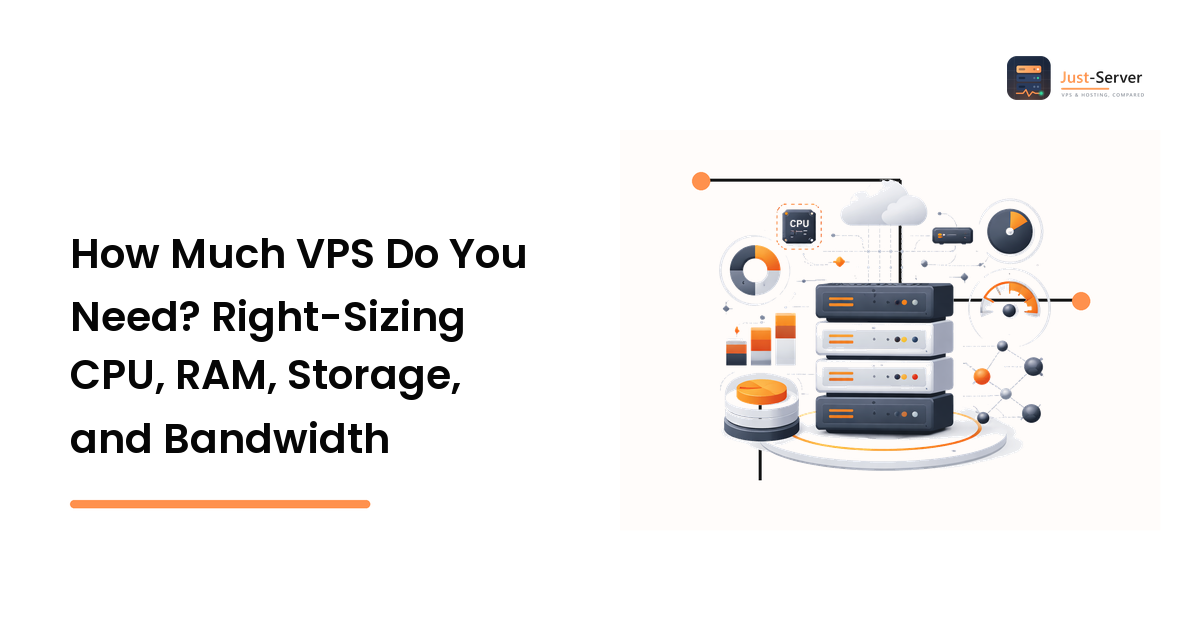
Every VPS plan is really just four numbers on a page: virtual CPUs, RAM, storage, and bandwidth. The hard part isn't finding a plan — it's knowing which of those numbers matters for your workload, and which you'll run out of first. Buy too small and the site crawls or falls over under load; buy too big and you pay every month for idle capacity.
The good news: sizing a VPS is a reasoning problem, not a guessing game. This guide explains what each spec means, how to match it to what you're actually running, and how to compare plans on equal footing. The one rule to carry through all of it: start one tier below where you think you need to be, then scale on evidence, because resizing a VPS is routine and paying for idle capacity is just waste.
Still deciding between shared, VPS, dedicated, and cloud? Start with our guide to web hosting types — this article assumes you've settled on a VPS. When you're ready to stand the server up, the first-server setup guide picks up where this one ends.
The four numbers that define a VPS
Almost every provider describes a plan with the same four specs. Read them in this order — roughly the order in which they tend to become a constraint.
RAM (memory)
RAM is usually the first thing you run out of, which is why it deserves top billing. It's the working memory your applications, database, and web server all share while requests are being handled. When a server runs low on RAM, the operating system starts swapping — moving memory to disk — and performance falls off a cliff because disk is far slower than memory.
Reason about RAM by counting what has to live in memory at once: the web server, the language runtime (PHP, Node, Python), the database, and any caching layer. A static or lightly dynamic site needs little. A database-backed application — WordPress, a CMS, an API with an ORM — wants more, because the database caches data in memory to stay fast. Multiple sites on one box multiply that. If you take one number seriously, take this one.
vCPU (virtual CPU cores)
A vCPU is a virtual core the hypervisor allocates to your server. More cores help with two things: handling many requests at the same time (concurrency), and finishing compute-heavy work faster (image processing, builds, background jobs). What a vCPU doesn't do is make a single slow query or a single blocking request faster on its own.
Most small and medium sites are comfortable on a small number of cores; the ceiling you hit first is almost always RAM or a slow database, not raw CPU. Treat lots of vCPUs as the answer to a measured problem — sustained high CPU usage or heavy concurrent traffic — rather than a default upgrade. One caveat: some budget plans share or "burst" CPU, meaning full speed only in short bursts. If your workload runs CPU hot for sustained periods, look for a plan that describes dedicated (not shared or burstable) vCPU.
Storage (size and type)
Storage has two dimensions people conflate. The first is capacity — how many gigabytes you get. Size this to your files, your database, and headroom for logs and backups, which quietly grow. A disk that fills to 100% will take the whole server down, so leave slack.
The second, and often more important, dimension is type and speed. NVMe is faster than SATA SSD, which is far faster than old spinning disk (HDD). Speed is measured in IOPS (input/output operations per second) and throughput. For anything database-driven, disk speed directly affects how fast queries return, so prefer SSD or NVMe when it's offered. A plan with a huge HDD can feel slower than one with a smaller NVMe volume for a busy database — capacity and speed are not the same purchase.
Bandwidth (the most misread number)
This is where most sizing mistakes hide. Providers use "bandwidth" to mean two different things:
- Transfer / data cap — how much data you can move per month, often quoted in terabytes. Serving lots of large files (video, images, downloads) burns through this; a text-heavy site barely touches it.
- Network speed / port rate — how fast the network connection is, quoted in Gbps (e.g. a 1 Gbps port). This is the pipe's width, not the monthly total.
A "1 Gbps unmetered" plan and a "5 TB transfer" plan describe different things. "Unlimited" and "unmetered" usually carry a fair-use policy too, and sustained heavy use can be throttled once you pass a soft threshold. Read the specifics, not the headline word.
Start from the workload, not the plan
Once you can read the four numbers, size from what you're running, not from the plan tiers. A few common shapes and how to reason about each:
- A personal site, blog, or brochure site — light on every axis; the risk is over-buying. A small VPS here is about control, not raw power.
- A WordPress or CMS site with real traffic — RAM-led, because the database and PHP both want memory, and a caching layer (which you'll want) needs more. Disk speed matters for the database.
- A small app or API — depends on the runtime. A single service is light; add background workers, a queue, and a database on the same box and RAM climbs quickly.
- Several sites or client projects on one server (the agency case) — add up the individual footprints, then add headroom, because they contend for the same RAM and CPU.
- A staging or dev box — size for correctness, not peak load; it can be smaller than production as long as it runs the same stack.
One caution as you do this: avoid fixed "X GB serves Y visitors" formulas. They depend entirely on your code, caching, and traffic pattern — reason from the components instead.
Measure before you guess
If you're sizing for a site that already exists, you don't have to estimate — you can measure. On the current server, a few commands tell you where you actually stand:
free -h

# Live CPU and per-process memory — sort and watch under load
htop

# Disk usage and free space per filesystem
df -h

# What is eating disk in the current directory tree
du -sh ./*
Read free -h first: if swap is in active use, you're memory-constrained and should size RAM up. In htop, sustained high CPU across cores under normal traffic points to a CPU or efficiency problem. df -h past roughly 80% on a filesystem means plan for more storage now, not later. For bandwidth, your host's control panel or monthly transfer graph shows real usage — size the new plan above your busiest month, with margin.
If you're on shared hosting and can't run these commands, use the traffic and storage figures the control panel does expose, and lean on the workload reasoning above. When it's time to move, our provider selection guide helps you land on a plan that fits the numbers you measured.
The right-sizing rule: start small, scale on evidence
Here's why you can safely start lean: a VPS is easy to resize. On most providers, adding RAM, CPU, or storage is a reboot, not a rebuild. So you don't buy for the traffic you hope to have in a year — you buy for today plus a little headroom, and scale when a measured limit appears.
Concrete signals that it's time to size up:
- Swap is regularly in use — add RAM.
- CPU sits high for sustained periods under normal traffic, not just brief spikes — add vCPU (or fix the hot code path first).
- A filesystem is filling up — add storage before it hits 100%.
- Response times are climbing as traffic grows — this may be resources, but it's often a slow query or missing cache, so diagnose before you buy. Our guide to finding the real cause of a slow server response walks through separating a resource limit from a code problem, which saves you from paying for a bigger box that doesn't fix anything.
The failure mode runs in both directions: over-buying "just in case" wastes money every month, while under-buying and ignoring the warning signs risks an outage under load.
Comparing plans on equal terms
Once you know the numbers you need, comparing providers is straightforward — as long as you compare like for like. Line the specs up in the same order every time: RAM, then vCPU (dedicated or burstable?), then storage (how much, and NVMe or SSD?), then bandwidth (transfer cap and port speed). Only then look at price, and read it as price per unit of the resource you actually care about — usually RAM for a database-driven site. A cheaper plan with half the RAM isn't cheaper for your workload.
Two factors that don't appear in the four numbers still change the decision: data-center location (closer to your users means lower latency) and whether the plan is managed or unmanaged (managed costs more but hands back patching and maintenance). Both can decide a close call between two plans.
Frequently asked questions
How many vCPUs does a small website need?
Usually just one or two. For a typical blog, brochure site, or low-traffic app, the constraint you hit first is RAM or a slow database, not CPU. Reach for more vCPUs when you can measure sustained high CPU usage or you're handling heavy concurrent traffic — not as a default upgrade.
Is "unmetered" or "unlimited" bandwidth really unlimited?
In practice, no. "Unmetered" almost always carries a fair-use policy, and sustained heavy transfer can be throttled once you cross a soft threshold. Separate the two meanings of bandwidth: the monthly transfer allowance and the network speed (port rate). Read the specific limits, not the headline word.
SSD or NVMe — does the difference matter?
It matters most for database-driven sites. NVMe is faster than SATA SSD, and both are dramatically faster than spinning HDD. Because disk speed affects how quickly queries return, a smaller NVMe volume can outperform a larger, cheaper HDD for a busy database. If a plan offers SSD or NVMe, prefer it; treat large HDD capacity as storage, not speed.
What are the signs I need to size up?
Four measurable ones: swap is regularly in use (add RAM), CPU stays high under normal load (add vCPU or fix the hot path), a filesystem is nearing full (add storage), or response times climb as traffic grows (diagnose first — it's often a slow query, not a resource limit). Scale on a measured signal, not a hunch.
Should I buy extra headroom just in case?
A little, not a lot. Because resizing a VPS is quick, the smarter play is to size for today's workload plus modest margin, then scale when a real constraint shows up. Over-provisioning means paying every month for idle capacity.
Match the numbers to a real plan
Sizing a VPS comes down to reading four specs honestly and matching them to what you actually run: lead with RAM, follow CPU with traffic and compute, follow storage speed with your database, and read bandwidth as both a transfer cap and a network rate. Start a tier lean, measure, and scale on evidence.
With your target numbers in hand, the last step is the easy one. Compare VPS plans and prices side by side — lined up on RAM, vCPU, storage type, and bandwidth — and pick the plan that fits the workload you measured, not the one with the biggest headline.